
Help
Crimezer User Manual
Crimezer has two parts: the phone app that residents and officers carry, and the web control panel that staff use to manage alerts, tips, users and emergencies. This manual covers both, with pictures of each screen.
Part 1: The phone app
The app looks different depending on who signs in. Residents see nearby alerts, can send tips, and have the emergency button. Officers and other staff see the Alert Zone, where they post and manage alerts and answer emergencies.
The pictures in this part were taken on an Android phone. The app works the same way on an iPhone. All names, numbers and alerts shown are made up.
Signing in
You sign in with your mobile number. There is no password: Crimezer texts you a 6-digit code each time.
- Open the app and type your 10-digit mobile number.
- Tick I agree to receive SMS verification codes from Crimezer LLC. The Login button stays grey until the number is complete and the box is ticked.
- Tap Login. A message says a code is on its way. Tap OK.
- Type the 6-digit code from the text message and tap Login.
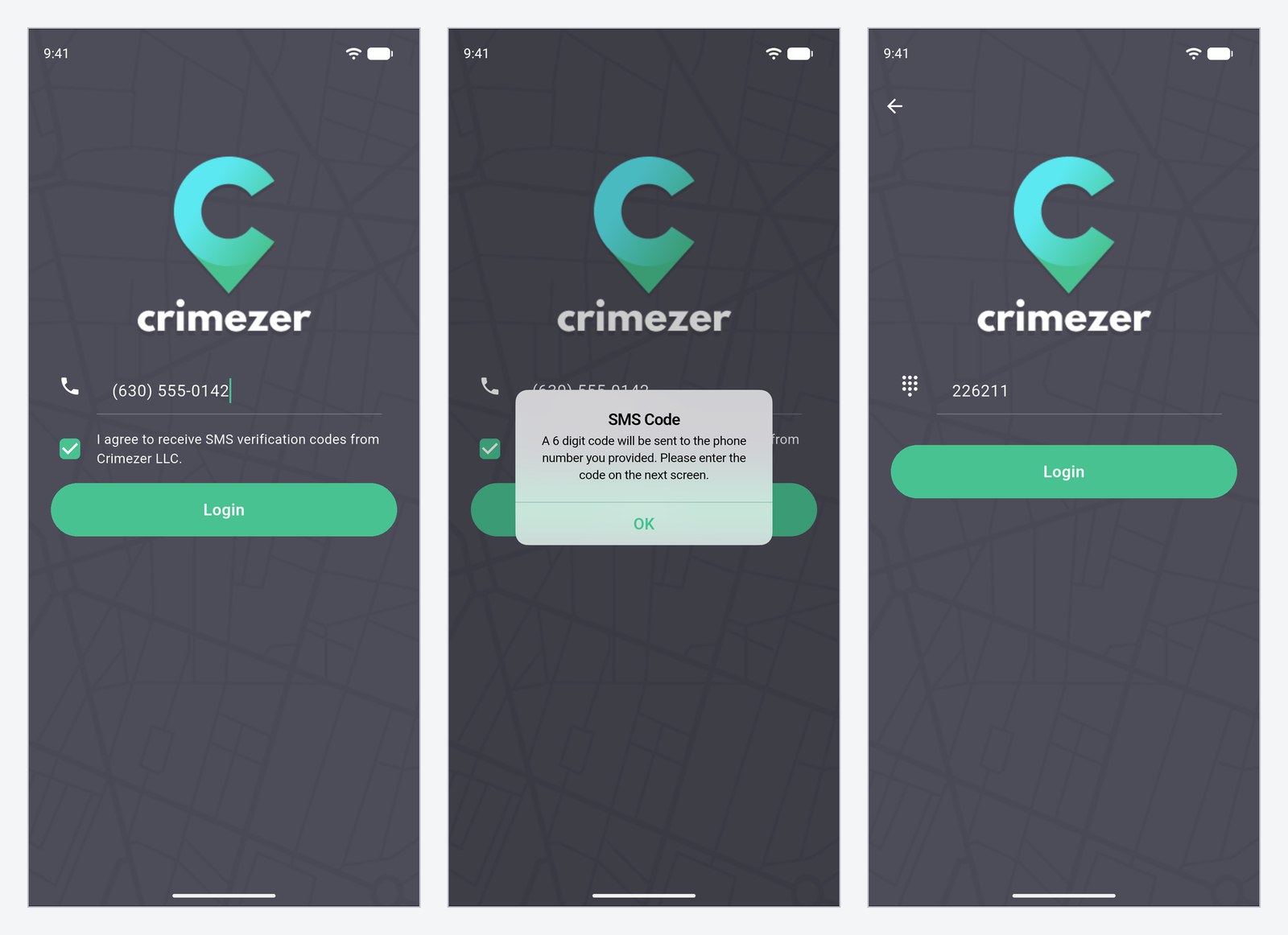
The code works for 5 minutes. If it does not arrive or has expired, tap the back arrow and tap Login again to get a new one.
The first time you sign in, the app opens My Profile so you can enter your full name. Tap Update to save it.
The home screen
The home screen shows what is happening near you: a map on top and a list of alerts underneath.
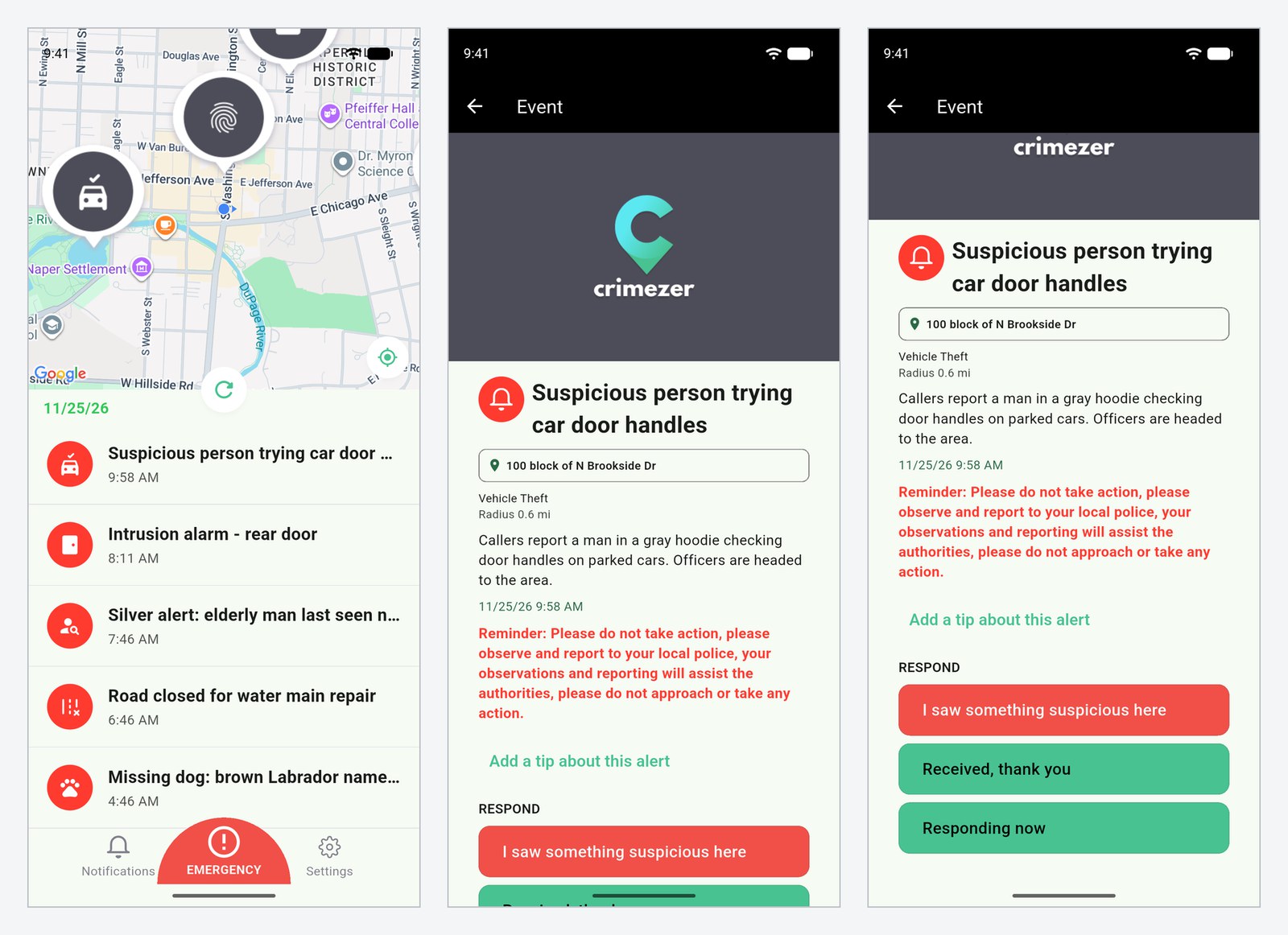
- Map: the blue dot is you. Each marker is an alert. Use + and − to zoom and the target button to return to your position.
- List: alerts are grouped by day, newest first. Each row shows the alert's icon, title, time and how far away it is. A TIP REPORTED label marks alerts you have sent a tip on.
- Refresh: pull the list down, or tap the round reload button between the map and the list.
- Bottom bar: Notifications opens your notification settings and Settings opens the menu. The red EMERGENCY button sits in the middle.
Tap a marker or a row to open that alert.
If the map shows "Location is off", turn on location for Crimezer in your phone's settings. The app needs your location to show alerts near you.
Reading an alert
An alert's page shows what happened, where, and how to respond.
- Photo and title at the top, when the officer attached a photo.
- Address: tap it to open the location in Google Maps.
- Details: the kind of alert, the radius it covers, the description and when it was posted.
- RESPOND: quick-answer buttons chosen for that kind of alert. Tap one to send it. A check mark shows your choice, and a counter shows how many people have responded.
A closed alert says "This event is closed to new responses."
Please do not take action yourself. Observe, and report to your local police.
Sending a tip
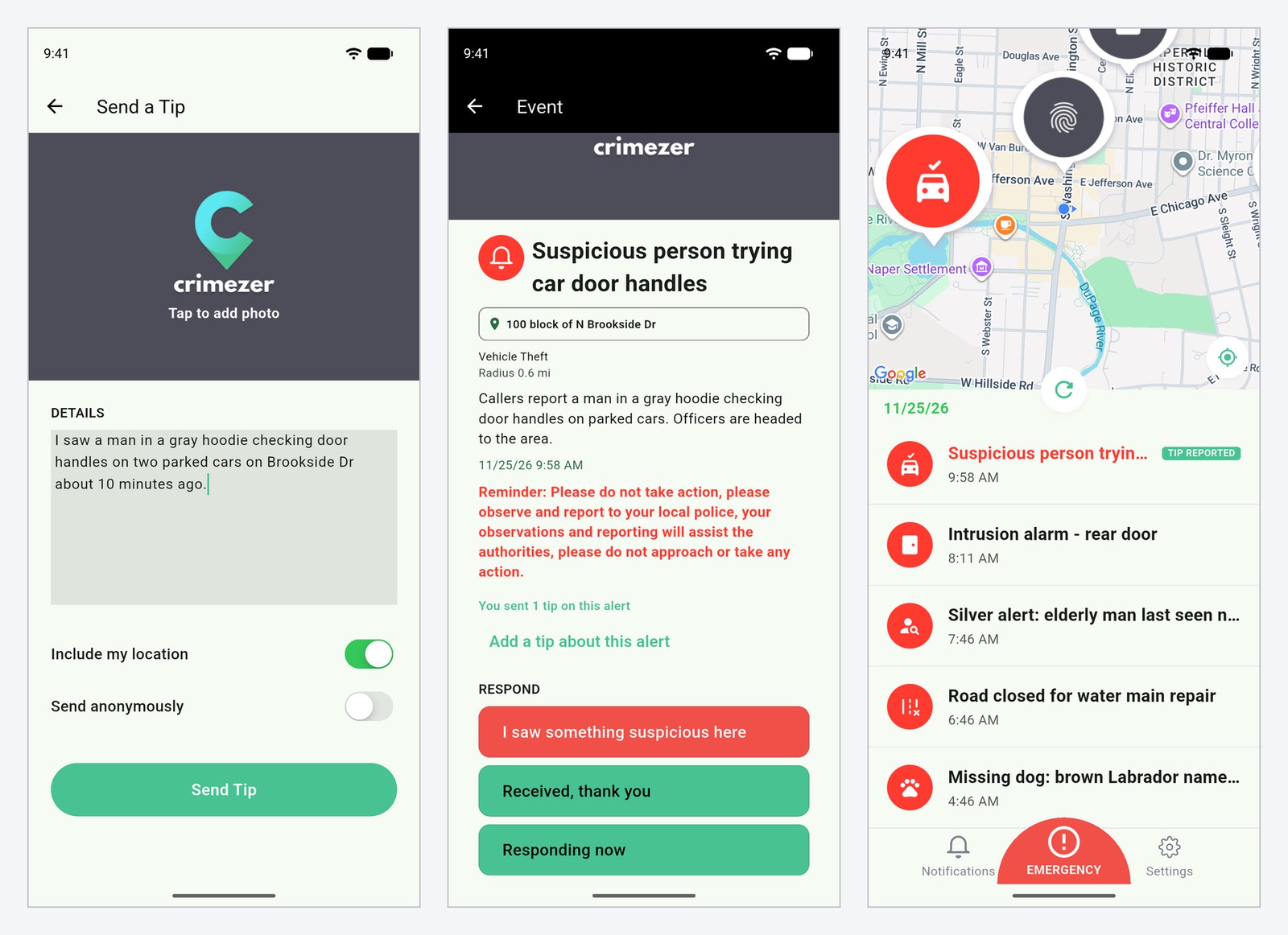
If you know something about an alert, send a tip. It goes to the officers handling that alert.
- Open the alert and tap Add a tip about this alert.
- Describe what you saw under DETAILS.
- Optional: tap the photo panel to take a picture or choose one from your gallery.
- Choose your privacy options:
- Include my location is on by default. It tells officers where you were when you sent the tip.
- Send anonymously is off by default. Turn it on to hide your name and number from officers.
- Tap Send Tip.
The app confirms with "Thanks. Your tip was sent." The alert then shows that you sent a tip.
The emergency button
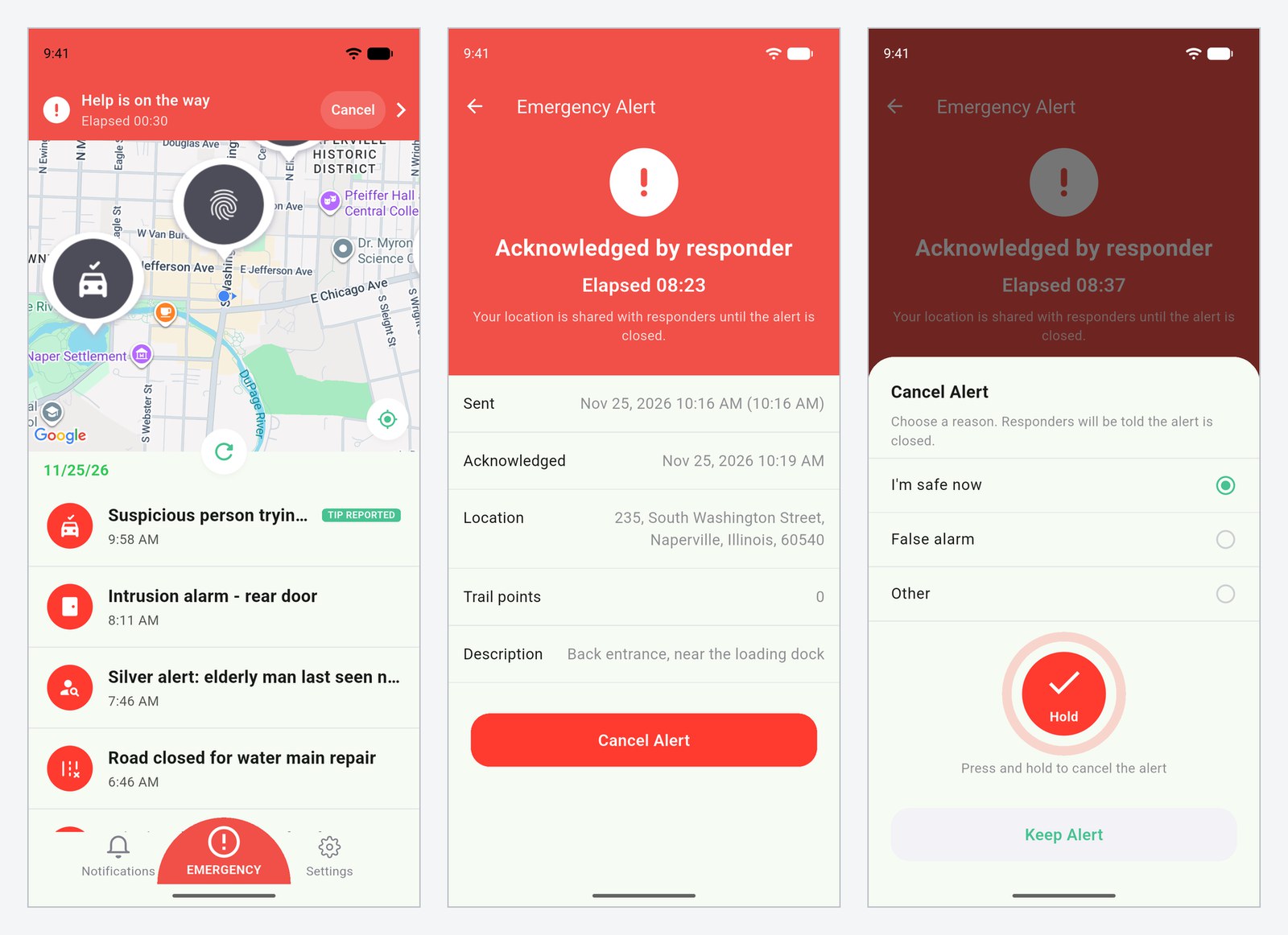
The red EMERGENCY button asks nearby first responders for immediate help and shares your location with them. Always call 911 first. Use the button only in a real emergency.
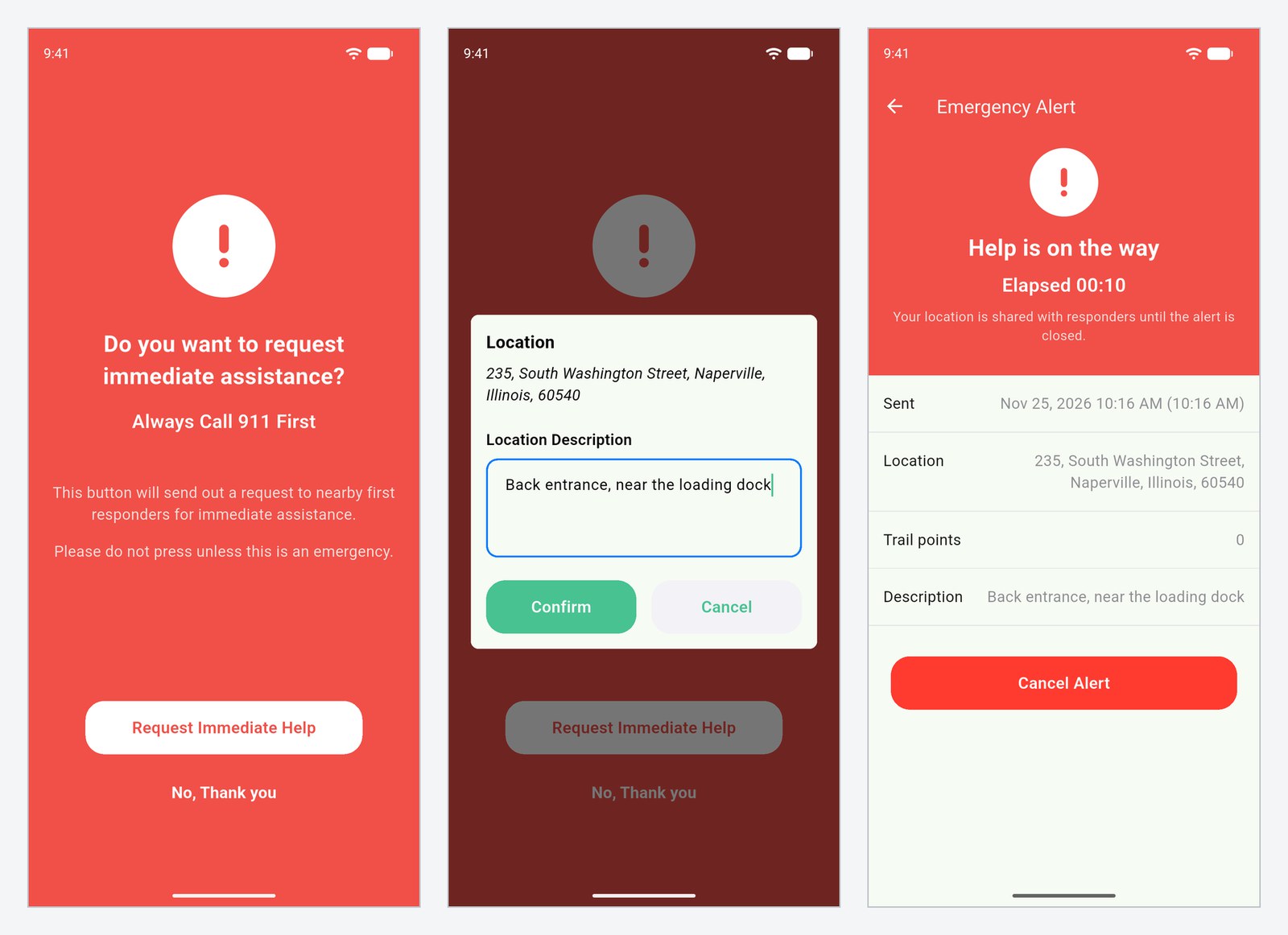
Sending an emergency alert
- Tap EMERGENCY on the home screen.
- Read the warning and tap Request Immediate Help. Tap No, Thank you to go back without sending.
- The app shows the address it found for you. You can add a short description, such as "back door, second floor".
- Tap Confirm. Nothing is sent until you do. Cancel closes the box without sending.
What happens next
- Responders are notified at once, and so are app users near you.
- Your emergency contacts get a text or email.
- The app keeps sending your position to responders until the alert is closed.
- Your screen shows Help is on the way and a running clock. It changes to Acknowledged by responder when an officer takes the alert.
- A red banner stays at the top of the home screen while your alert is open. Tap it to see the alert again.
If the phone cannot get a location in a few seconds, the alert still goes out and is marked as needing a location. Pressing the button twice does not create a second alert. An alert that nobody closes ends by itself after 60 minutes.
Cancelling your alert
- Tap Cancel on the red banner, or Cancel Alert on the alert's page.
- Choose a reason: I'm safe now, False alarm or Other.
- Press and hold the round Hold button for one second.
Responders are told the alert is closed and why. Keep Alert closes the sheet and leaves your alert open.
If the button is missing
Your organization can turn the emergency button off, for one person or for everyone. When it is off, the button does not appear on the home screen. Call 911.
Settings
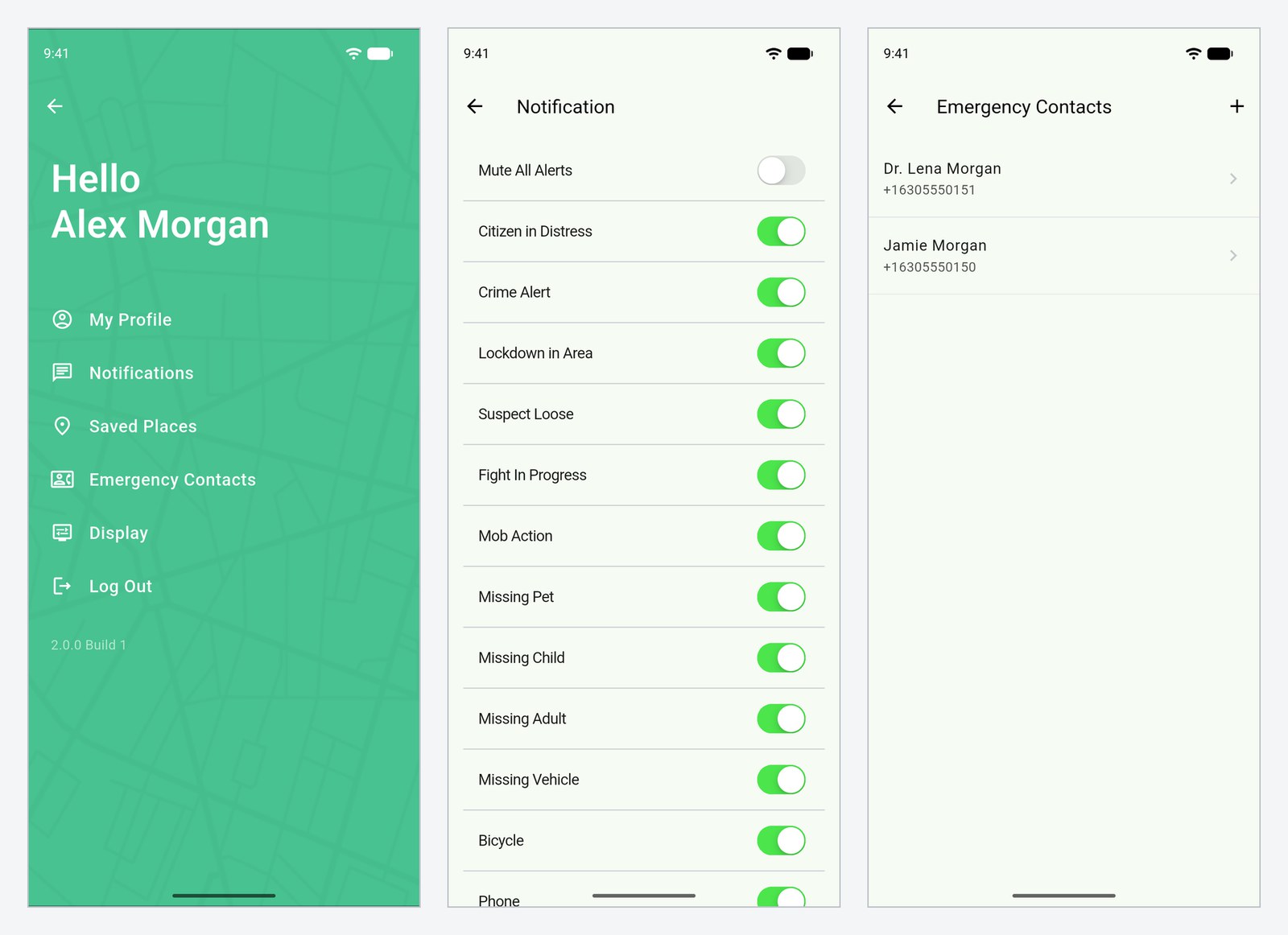
Tap Settings on the home screen. Officers tap the menu icon at the top left.
| Menu item | What it does |
|---|---|
| My Profile | Change your full name. Your phone number cannot be changed here. |
| Notifications | Choose which kinds of alerts notify you. |
| Saved Places | Get alerts for places other than where you are, such as home or a school. |
| Emergency Contacts | The people who are told when you send an emergency alert. |
| Display | Light, dark, or follow the phone's setting. |
| Log Out | Sign out of the app on this phone. |
Notifications
Each kind of alert has its own switch. New accounts start with every kind turned on.
- Mute All Alerts silences every kind at once.
- Play Sound turns the notification sound on or off.
- Opt Out of Emergency Alerts stops notifications about other people's emergency alerts.
Saved Places
Tap + to add a place. Give it a name, then tap Use My Location while you are standing there, or type its latitude and longitude. Each place has an Alerts On switch. You can save up to 20 places. Swipe a place to the left to delete it.
Emergency Contacts
Tap + to add a contact. Enter a name and at least one phone number or email address. A contact can have several of each. You can keep up to 10 contacts. Tap a contact to change it, or swipe it to the left to remove it.
Tell your contacts in advance that they may get a message from Crimezer.
For officers and staff
Officers, chiefs, alarm company managers and administrators sign in the same way and land on the Alert Zone. It has no emergency button. It adds the tools for posting alerts and answering the public.
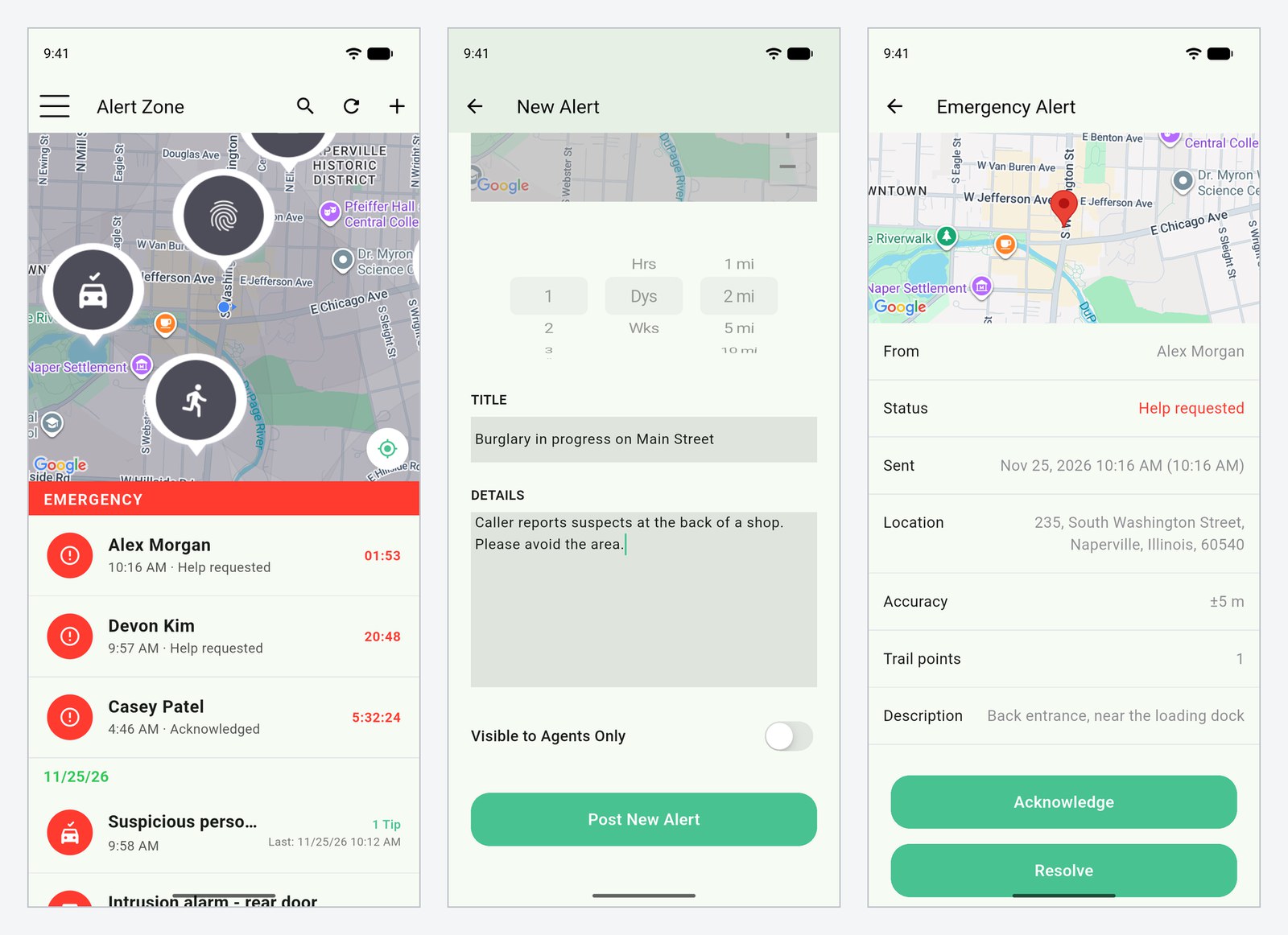
The Alert Zone
- The map shows each alert with a circle for the area it covers.
- The list combines nearby alerts with your own. Yours carry a MINE label. Each row shows how many tips and updates it has.
- Open emergency alerts are pinned at the top under a red EMERGENCY heading.
- At the top right: search by event number, reload, and + to post a new alert.
Posting an alert
- Tap +.
- Optional: tap the photo panel to add a picture.
- Choose the TYPE, then the CLASS. The class decides the icon and the quick answers residents can send.
- Set the LOCATION. Search for an address, or move the map under the pin.
- Set how long the alert runs (1 hour to 12 weeks) and its radius (1, 2, 5 or 10 miles).
- Enter a TITLE and the DETAILS.
- Optional: turn on Visible to Agents Only to keep it from the public.
- Tap Post New Alert.
To change an alert, open it and tap Edit. There you can also set its status to Updated, Resolved or Resolved Keep, or delete it. You can edit alerts you posted and alerts from your own organization. Some fields can only be changed by the person who posted the alert.
Tips and updates
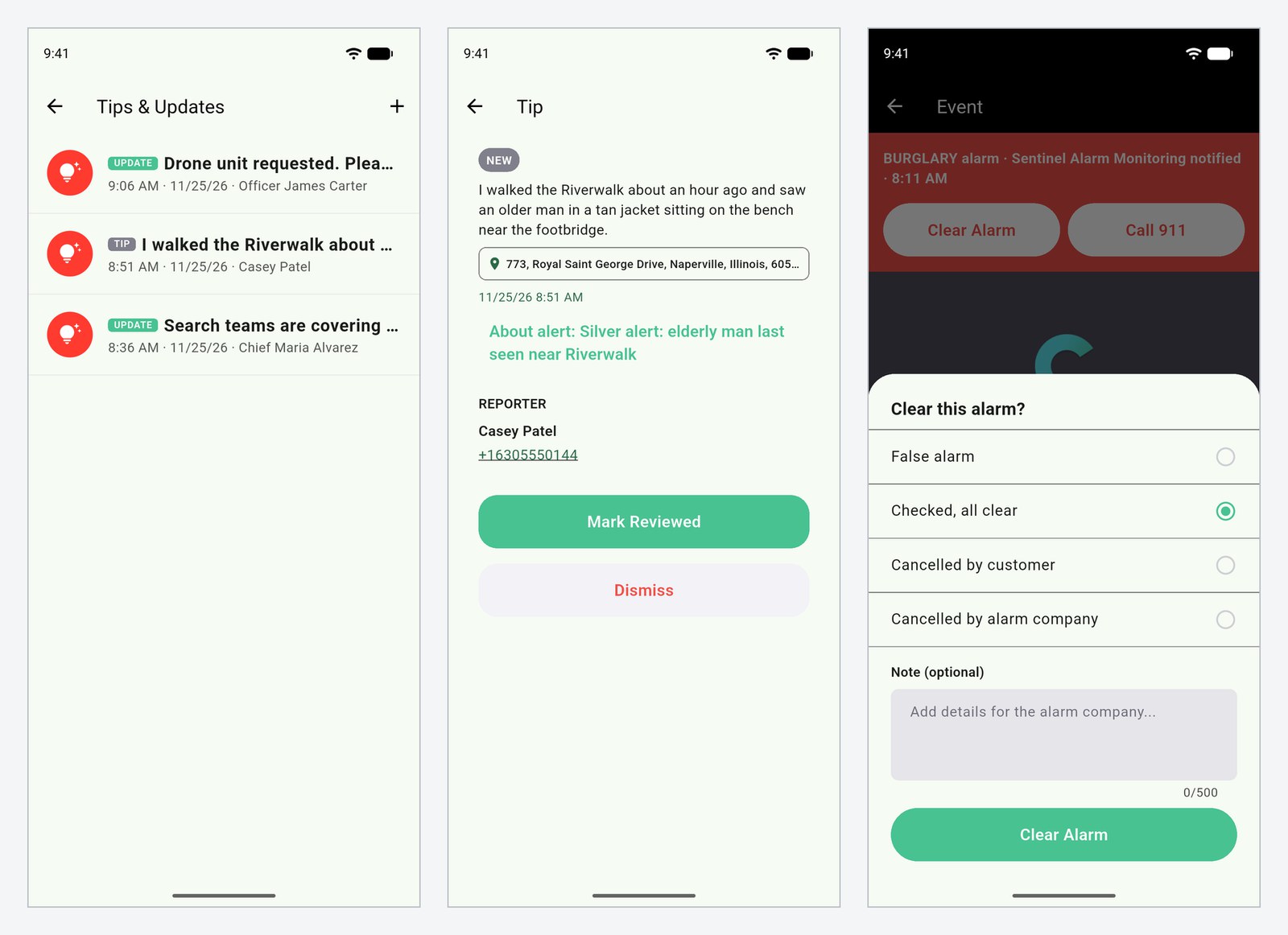
Open an alert and tap its Tips / Updates link to read what residents sent. Each tip shows the sender's name and phone number, or "Anonymous", the message, and the location when it was included. Tap Mark Reviewed or Dismiss to sort them.
Tap Add update on an alert to post new information about it.
Answering an emergency alert
- Tap the alert under EMERGENCY on the Alert Zone, or tap the notification.
- The page shows who sent it, a map of their latest position, when it was sent and any description.
- Tap Acknowledge to tell the sender that help is coming.
- Tap Resolve when the emergency is over.
Alarm events
Alerts that come from an alarm company carry a banner with the kind of alarm and the company's name. Settings > Alarm Events lists the last 7 days.
To close one, tap Clear Alarm, choose a reason (False alarm, Checked all clear, Cancelled by customer, or Cancelled by alarm company), add a note if you like, and confirm. The alarm company's customer sees their own alarm in the app and can tap False alarm, I'm home or Call 911.
Part 2: The control panel
The control panel is the website staff use to manage Crimezer. It works in any current web browser and updates by itself as alerts come in.
Signing in
Go to crimezer.com/admin and sign in with your email address and password. Administrators, agency chiefs, agents and alarm company managers can sign in. Residents cannot.
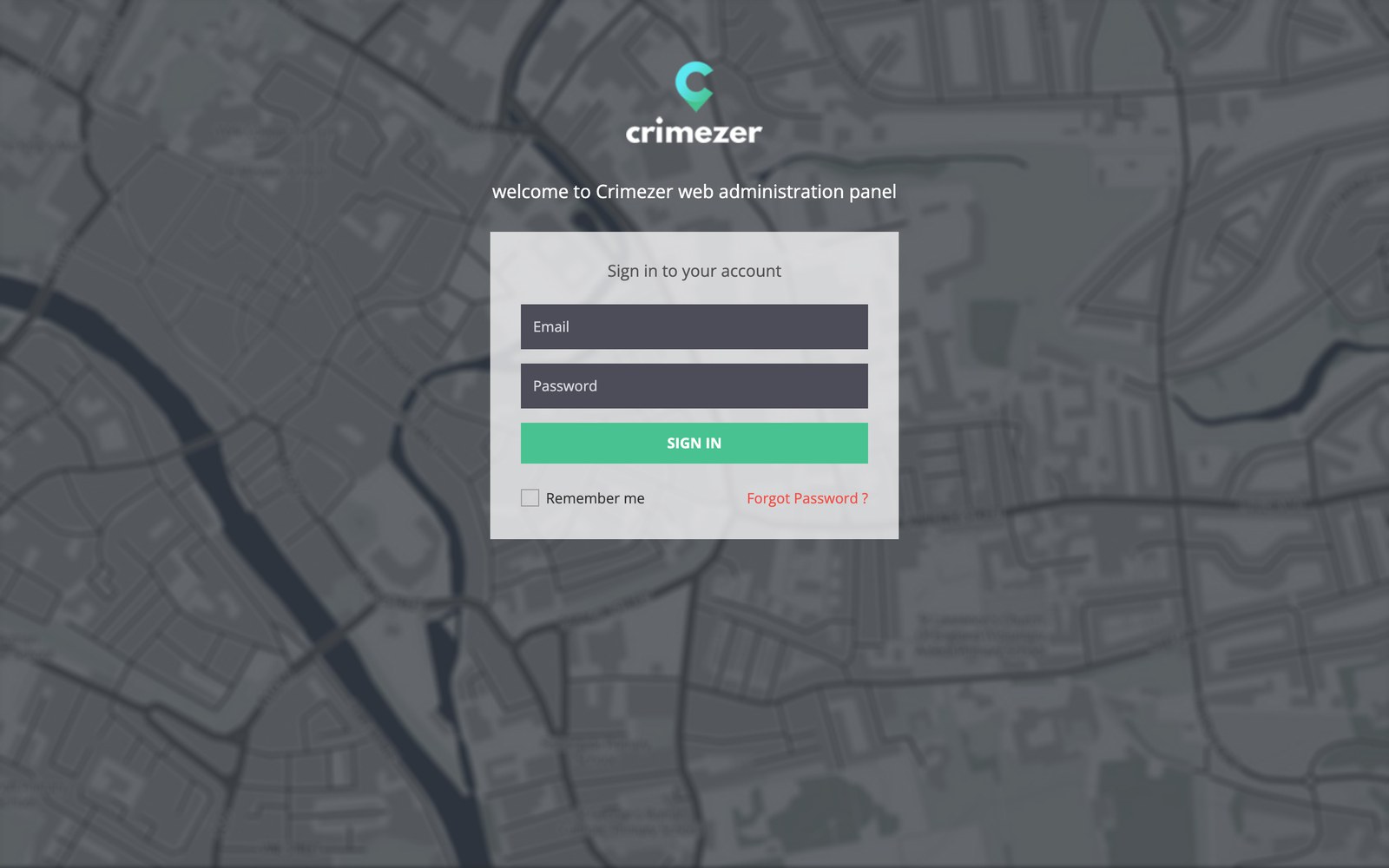
If you forget your password, click Forgot Password ?, enter your email and click Submit. A reset link arrives by email. It works once and expires after 24 hours. A new password needs at least 12 characters.
Finding your way around
- Top bar: the menu button hides or shows the sidebar. Your name at the right opens My Profile, Change Password and Log Out.
- Sidebar: the sections you are allowed to use. The table below shows who sees what.
- Each page: buttons for that page sit at the top right. List pages have a Filter By panel. View All clears the filters.
- Anything that deletes or cannot be undone asks you to confirm first.
| Section | Administrator | Agency chief | Agent | Alarm company manager |
|---|---|---|---|---|
| Dashboard, Events, Emergency alerts | Yes | Yes | Yes | Yes |
| Tips | Yes | Yes | Yes | No |
| Users | All lists | Citizens and own agents | Citizens, view only | Own customers |
| Agencies and alarm companies | All | Own agency | No | Own company |
| Access requests, Event Settings | Yes | No | No | No |
| Turn the emergency button off for everyone | Yes | View only | View only | View only |
The dashboard
The dashboard is the first page after you sign in. It shows what needs attention now.
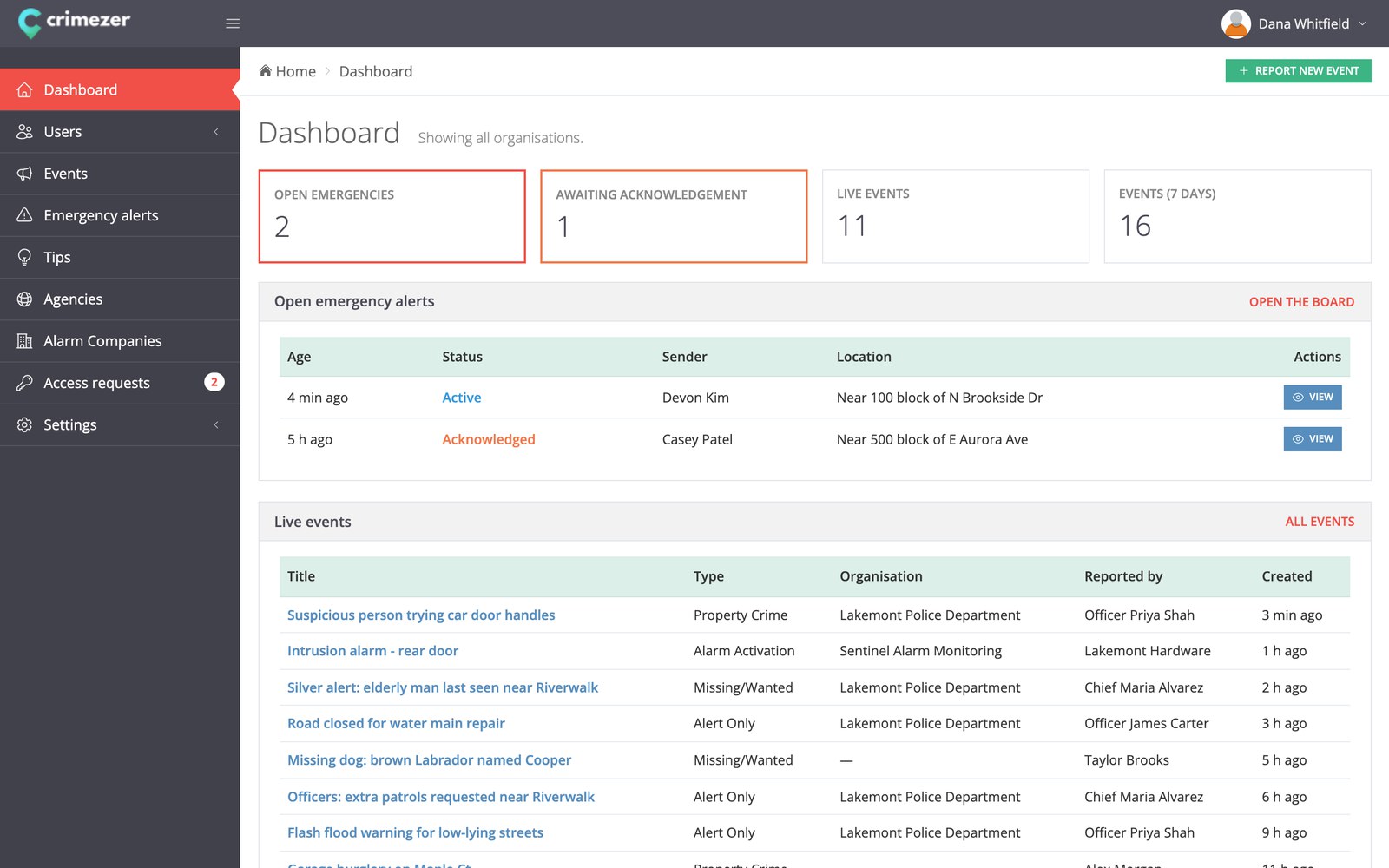
- Open emergencies and Awaiting acknowledgement count emergency alerts that are still open. They turn red or orange when the count is above zero.
- Live events counts alerts currently showing in the app. Events (7 days) counts the last week.
- Open emergency alerts lists up to five open emergencies, with a View button for each.
- Live events lists the newest live alerts.
- Administrators also see access requests waiting, total users, staff and new sign-ups for the week.
Click Report new event to post an alert from here.
Events
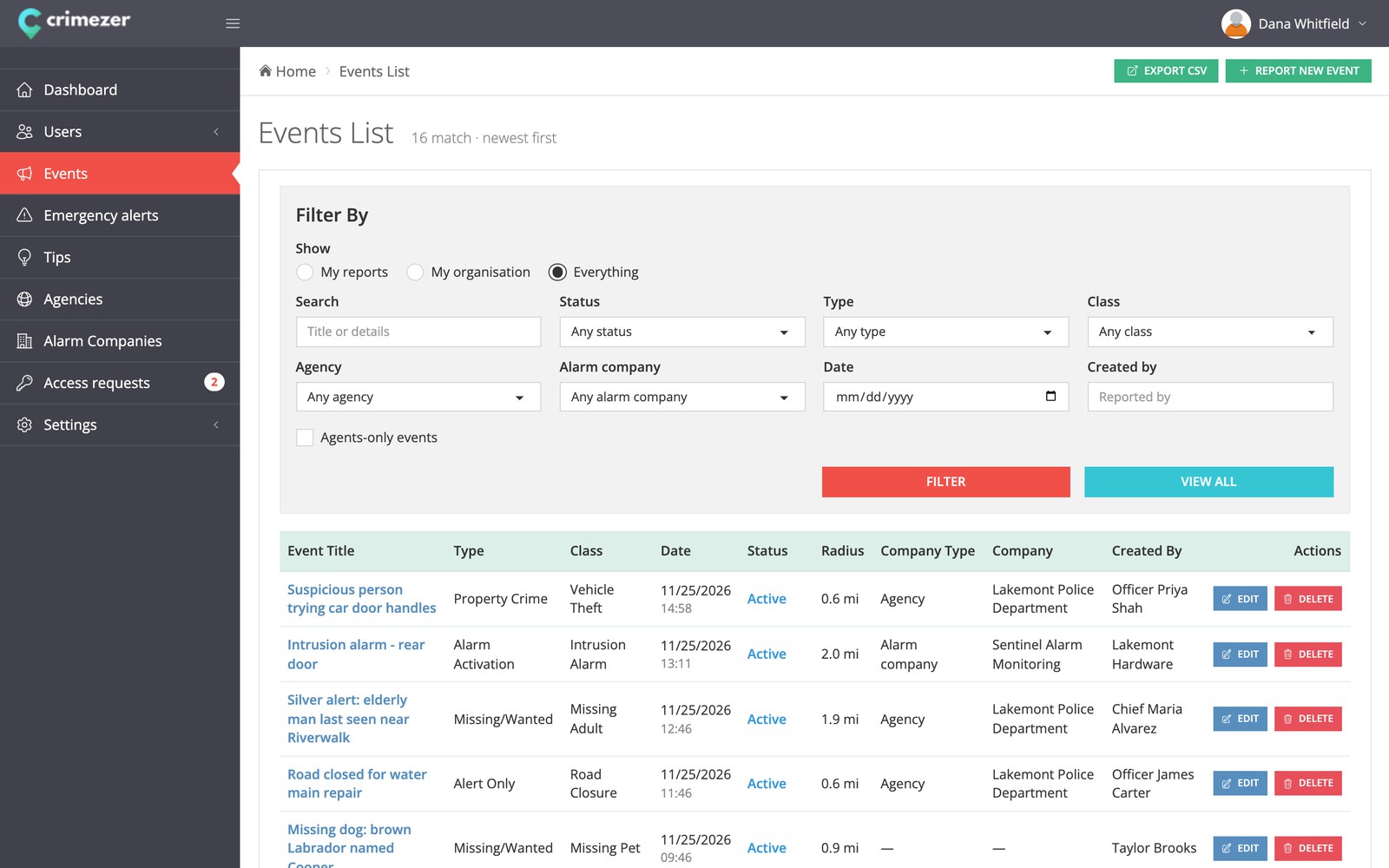
An event is an alert that appears in the app. The Events page lists them, newest first.
Finding events
Use the Filter By panel to narrow the list by words in the title or details, status, type, class, date, or the person who posted it. Show switches between your own reports, your organization's, and (for administrators) everything. Export CSV downloads the events that match the current filters.
| Status | Meaning |
|---|---|
| Active | Live in the app until it expires. |
| Resolved | Closed and hidden from the app. |
| Resolved (kept) | Closed, but still on the map for one more day. |
| Expired | Its time ran out. |
| Cancelled | Withdrawn. |
Posting an event
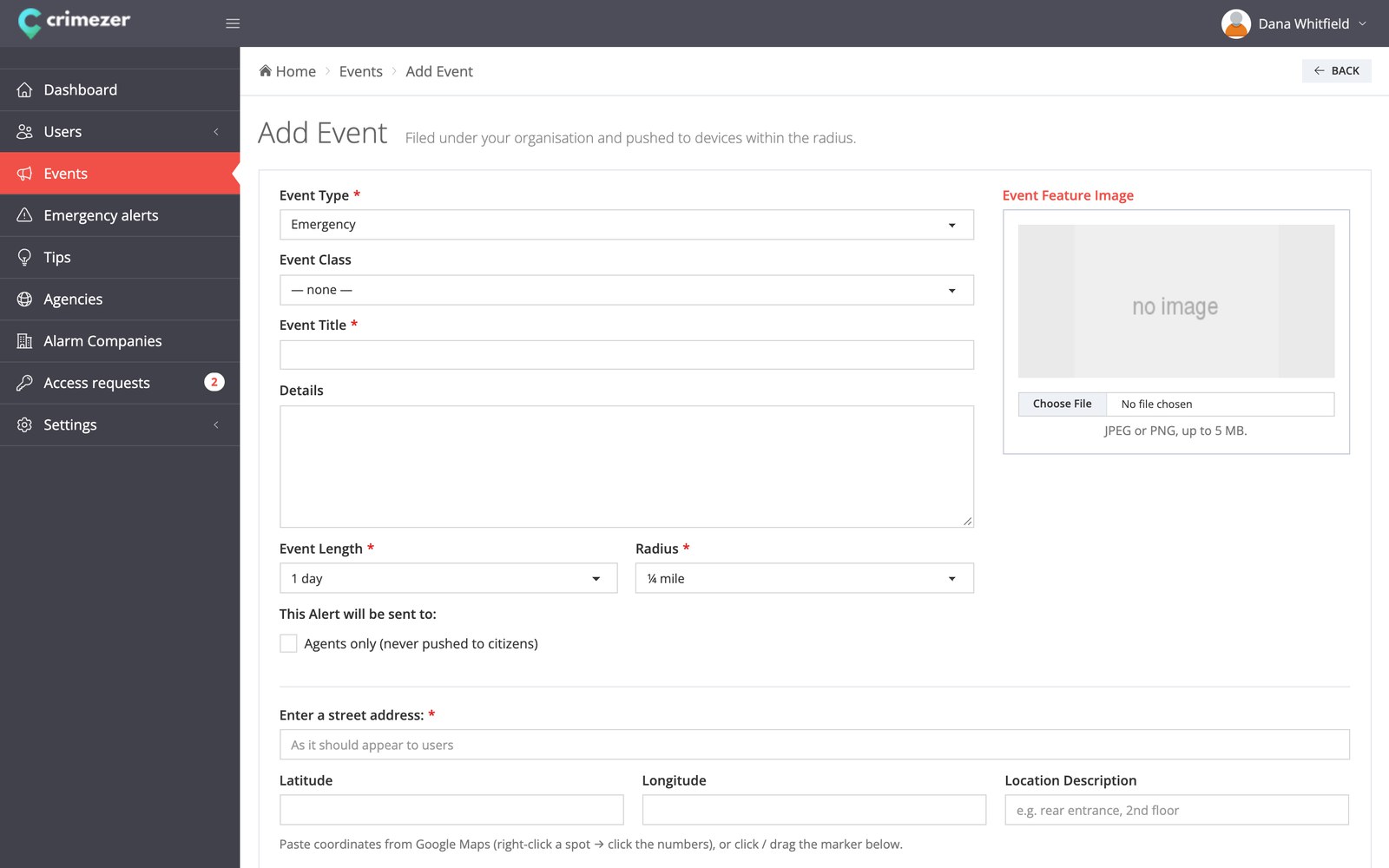
- Click Report new event.
- Choose the Event Type and Event Class.
- Enter the Event Title and Details.
- Choose the Event Length (1 hour to 2 weeks) and the Radius (¼ mile to 25 miles). Phones inside the radius are notified.
- Optional: tick Agents only to keep the event from the public, and add a photo (JPEG or PNG, up to 5 MB).
- Enter the street address as residents should see it.
- Set the position: click the map or drag the marker, or type the latitude and longitude. The circle shows the radius.
- Click Add Event.
The event is filed under your organization and sent to nearby phones.
Working an event
Click an event's title to open it. The page shows its details, a map, the quick answers residents sent, and its tips and updates.
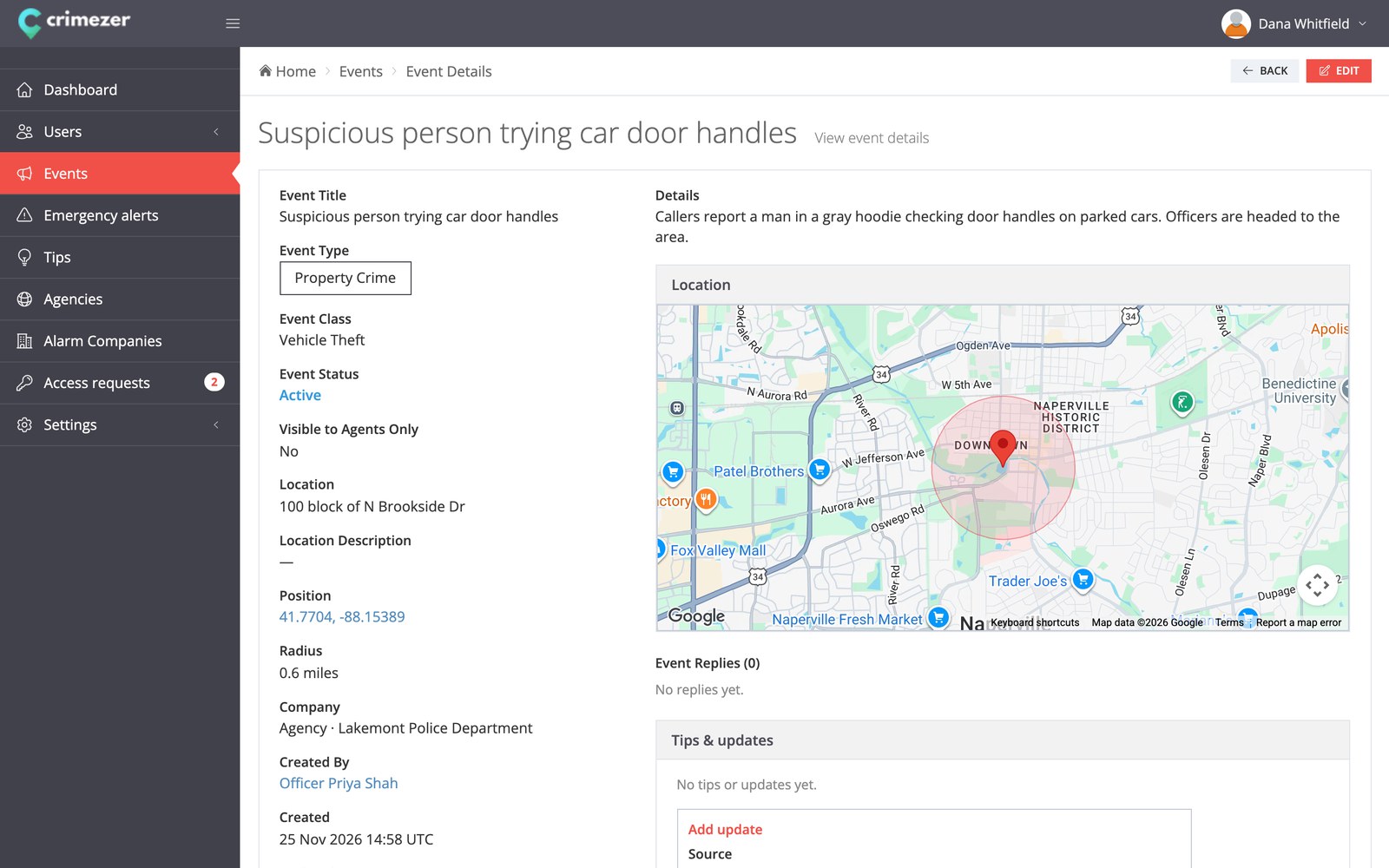
- Add update: choose where the information came from (posted here, phone, radio, email, in person), type the update and click Post update.
- Resolve - hide now closes the event and removes it from the app.
- Resolve - keep visible 1 day closes it but leaves it on the map for a day, so residents see the outcome.
- Edit changes any field. Restart the clock for gives an event more time.
- Delete removes it permanently.
You can fully edit events you posted. Chiefs and managers can edit and delete any event of their organization. Agents can change the status, position, address and details of a colleague's event, but not its title, type or radius.
Alarm events
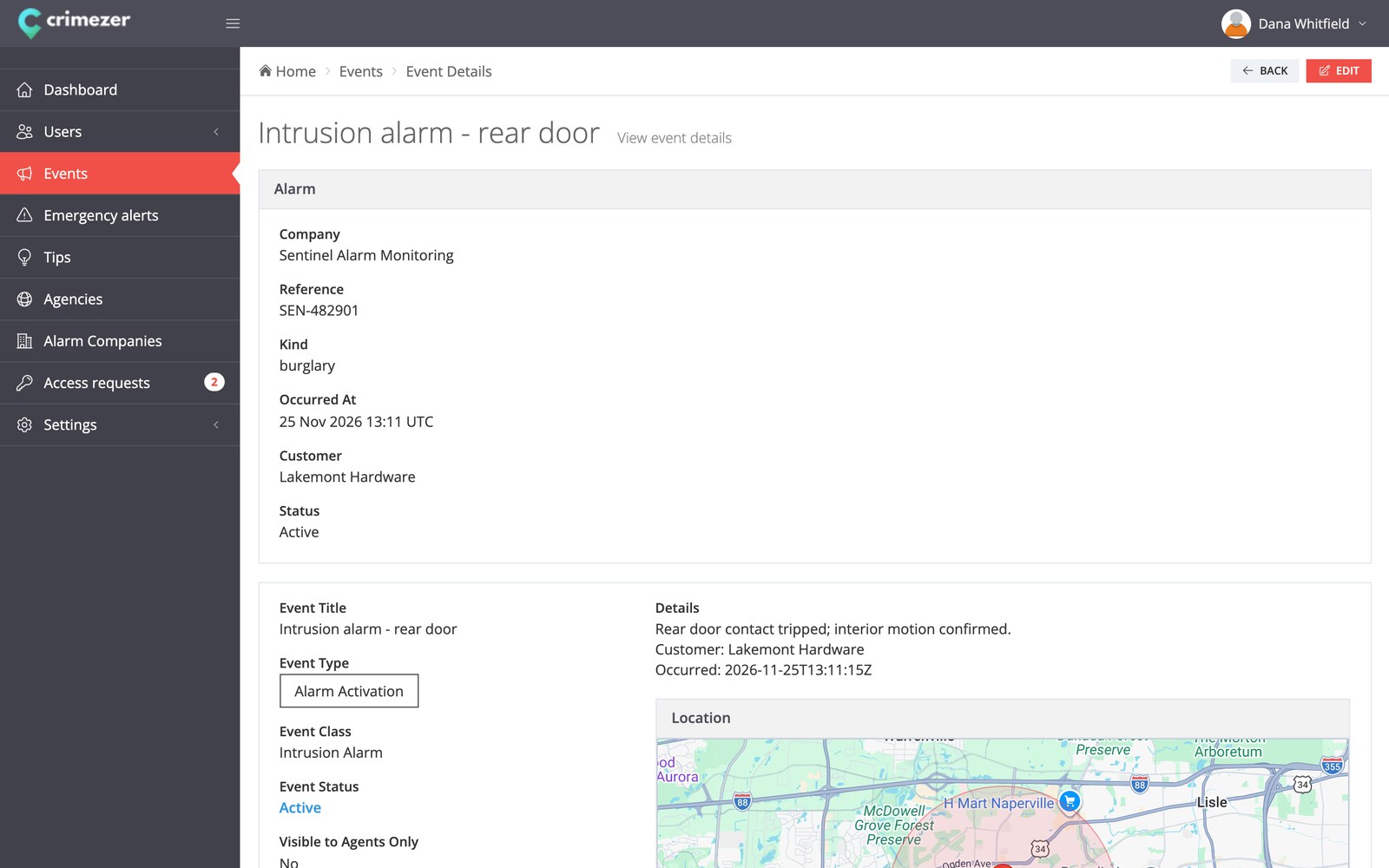
Events sent in by an alarm company show an Alarm panel with the company, its reference number, the kind of alarm and the customer. To close one, choose a reason under Clear alarm (False alarm, Checked all clear, Cancelled by customer, Cancelled by alarm company), add a note if needed and click Clear Alarm. The alarm company is told automatically.
Tips
The Tips page collects what residents send in about alerts, along with updates posted by responders. It opens on tips that are still New.
Each row shows the text, a photo if one was attached, when it arrived, where the sender was, the event it belongs to, and the sender's name and phone number. Anonymous tips show "Anonymous".
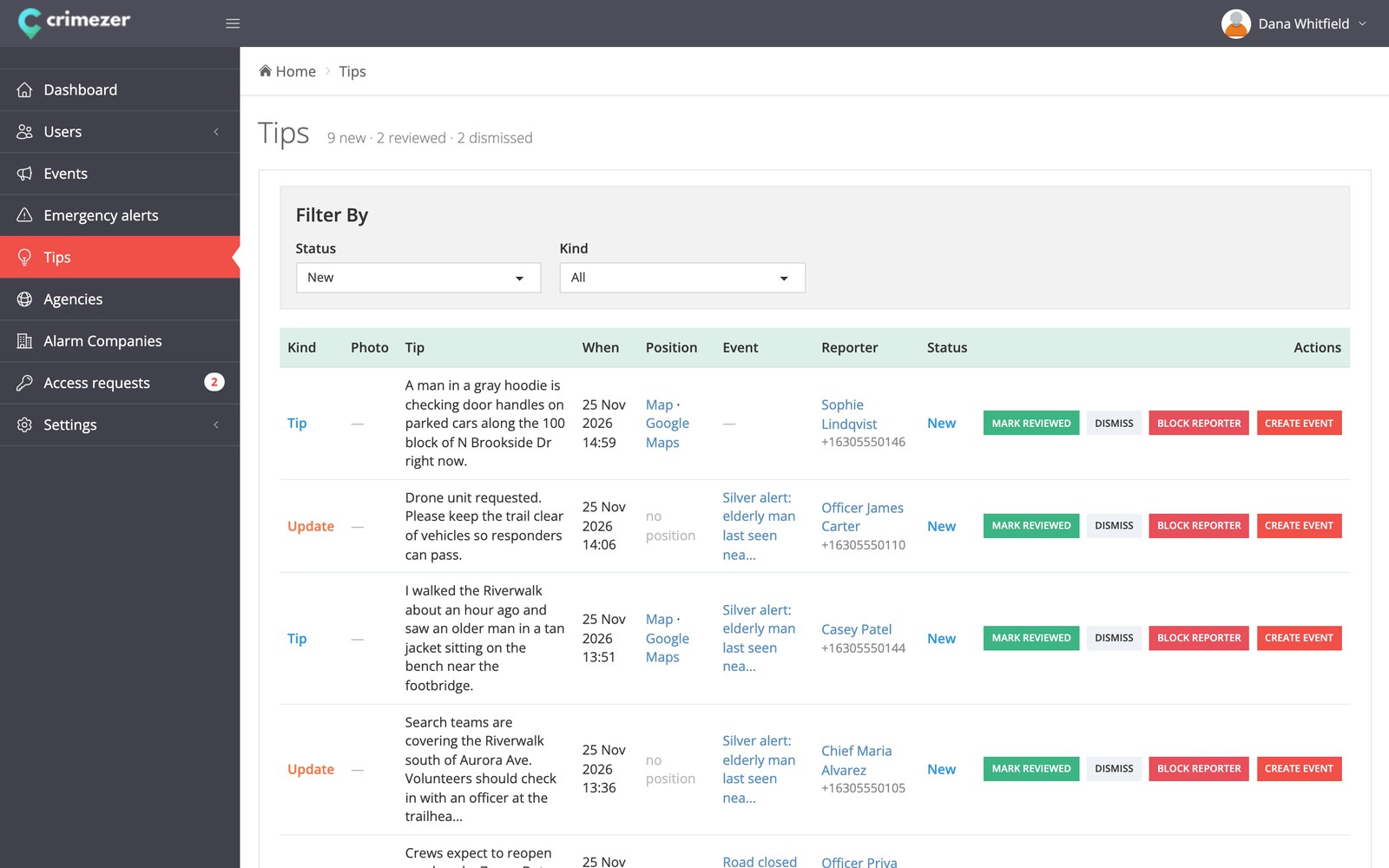
| Button | What it does |
|---|---|
| Mark reviewed | Moves the tip out of the New list once someone has read it. |
| Dismiss | Sets aside a tip that is not useful. |
| Block reporter | Stops that person from sending more tips. Use it for abuse. |
| Create event | Opens a new event filled in with the tip's text, position and photo. |
Use the Status and Kind filters to see reviewed or dismissed tips, or only responder updates. Click Map in the Position column to see where a tip was sent from.
Emergency alerts
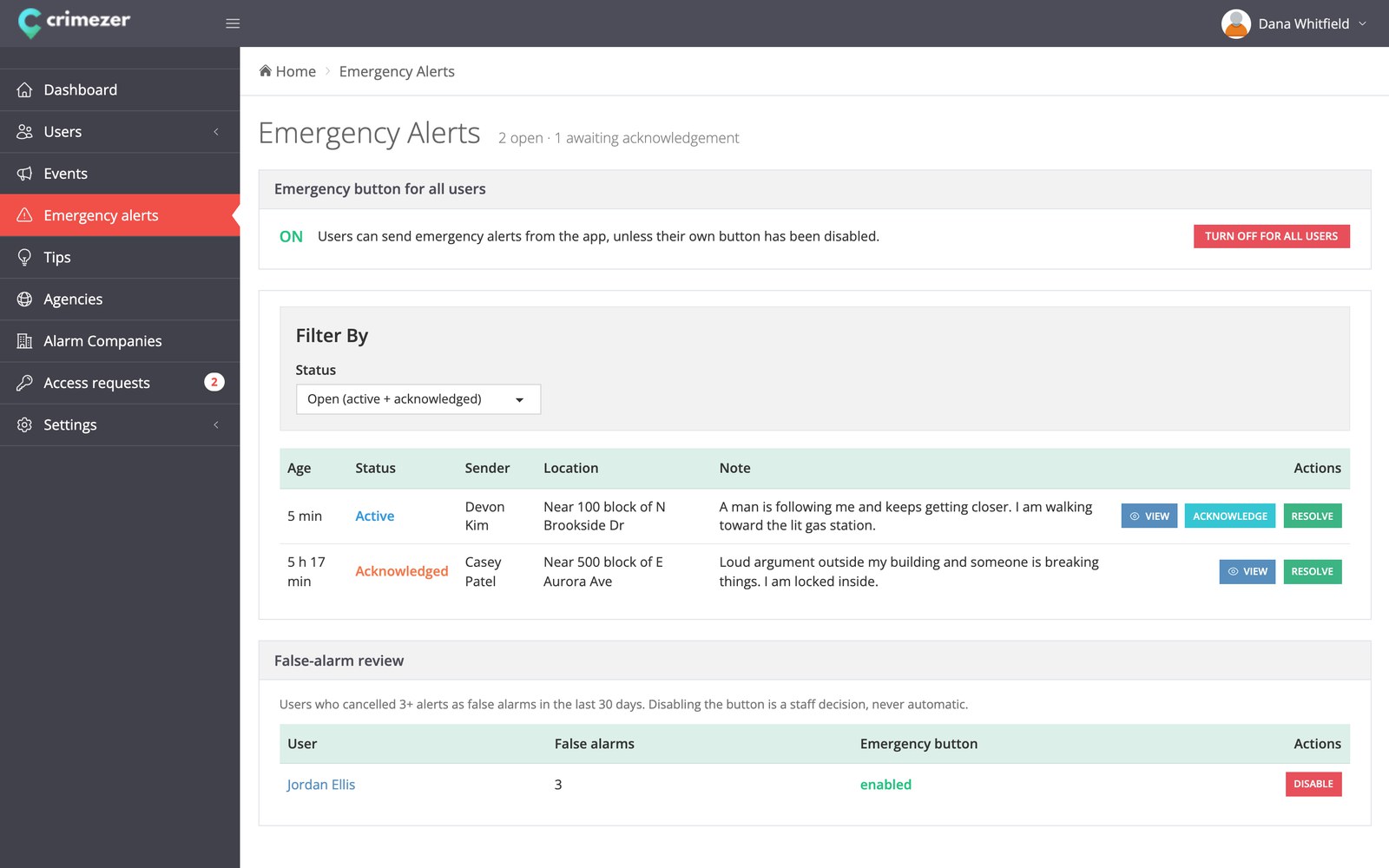
The Emergency alerts page is the live board for the emergency button. It updates the moment someone presses the button, with no need to refresh.
The board
Each row is one alert: how long ago it was sent, its status, the sender, the location and any note. An alert with no usable location shows a red needs location label. The age turns red when the alert is within 10 minutes of expiring.
| Status | Meaning |
|---|---|
| Active | Sent, and no responder has taken it yet. |
| Acknowledged | A responder has taken it. The sender sees "Acknowledged by responder". |
| Resolved | A responder closed it. |
| Cancelled | The sender closed it, with a reason. |
| Expired | Nobody closed it within 60 minutes. |
- Acknowledge tells the sender that help is coming.
- Resolve closes the alert when the emergency is over.
- View opens the alert's page: the sender's name and phone number, a map with the trail of positions the phone has sent, a timeline, and a log of who did what.
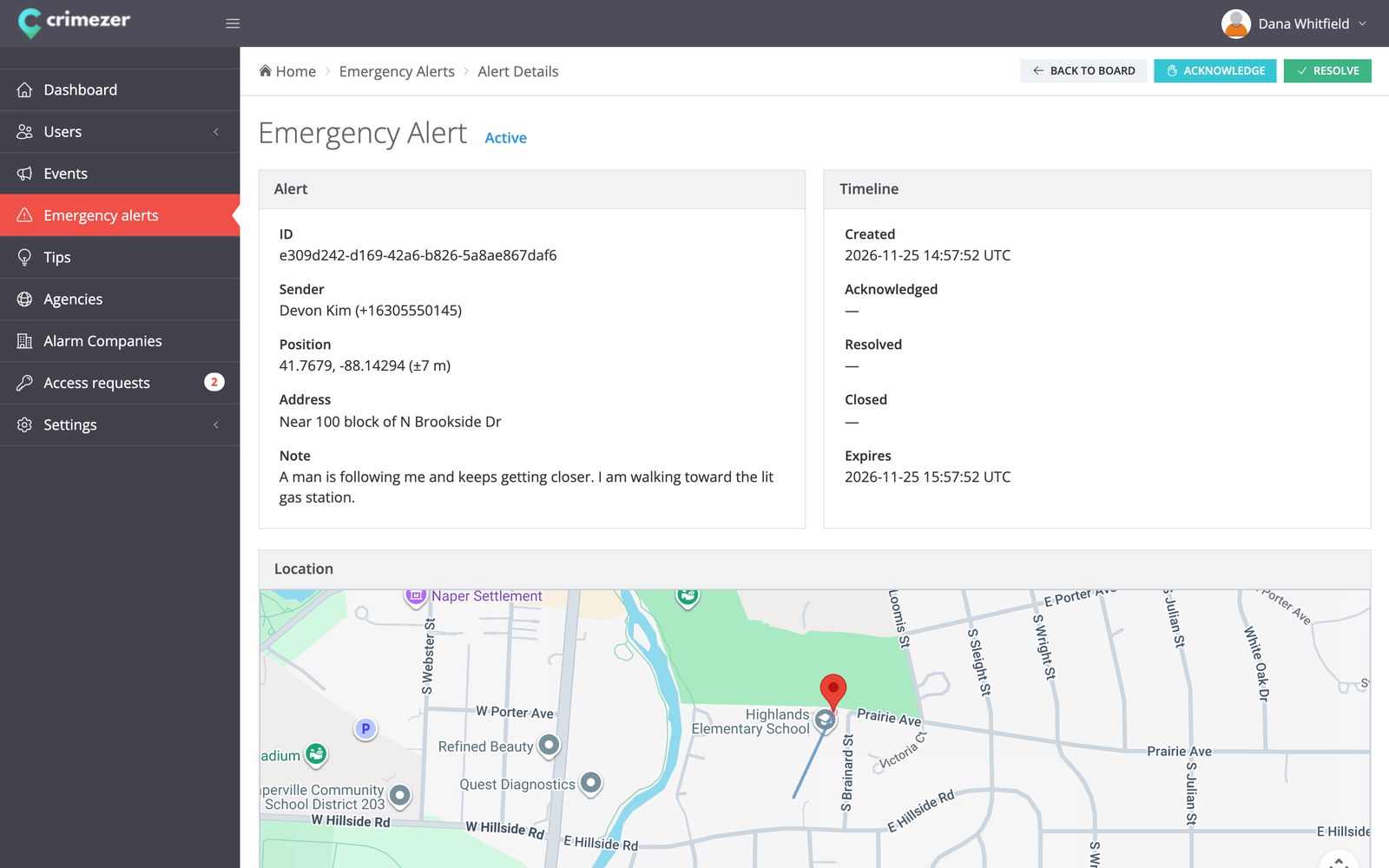
The board opens on open alerts. Use the Status filter to see past ones.
Turning the emergency button off for all users
The box at the top of the board, Emergency button for all users, shows whether the button is ON or OFF for everyone, and who changed it last.
To turn it off, an administrator clicks Turn off for all users and confirms. From then on:
- Nobody can send a new emergency alert.
- The button disappears from the app the next time each phone refreshes.
- Alerts that were already open stay on the board and can still be acknowledged and resolved.
Click Turn on for all users to restore it. Only administrators can change this setting. Other staff see its state.
Turning it off for one person
The False-alarm review box lists users who cancelled three or more alerts as false alarms in the last 30 days. Click Disable to remove the button for that person, or Restore to give it back. Crimezer never does this by itself; it is a staff decision.
You can do the same for anyone from their user page with Disable emergency button.
Users
Users are kept in four lists under Users in the sidebar.
| List | Who is in it | How they use Crimezer |
|---|---|---|
| Citizens | Residents | The app: alerts, tips, emergency button. |
| Agents | Officers and agency chiefs | The app's Alert Zone, and this control panel. |
| Customers | An alarm company's customers and its managers | Customers use the app. Managers also use this control panel. |
| Administrators | Crimezer administrators | Everything. |
Search a list by name, phone number or email, or filter by status.
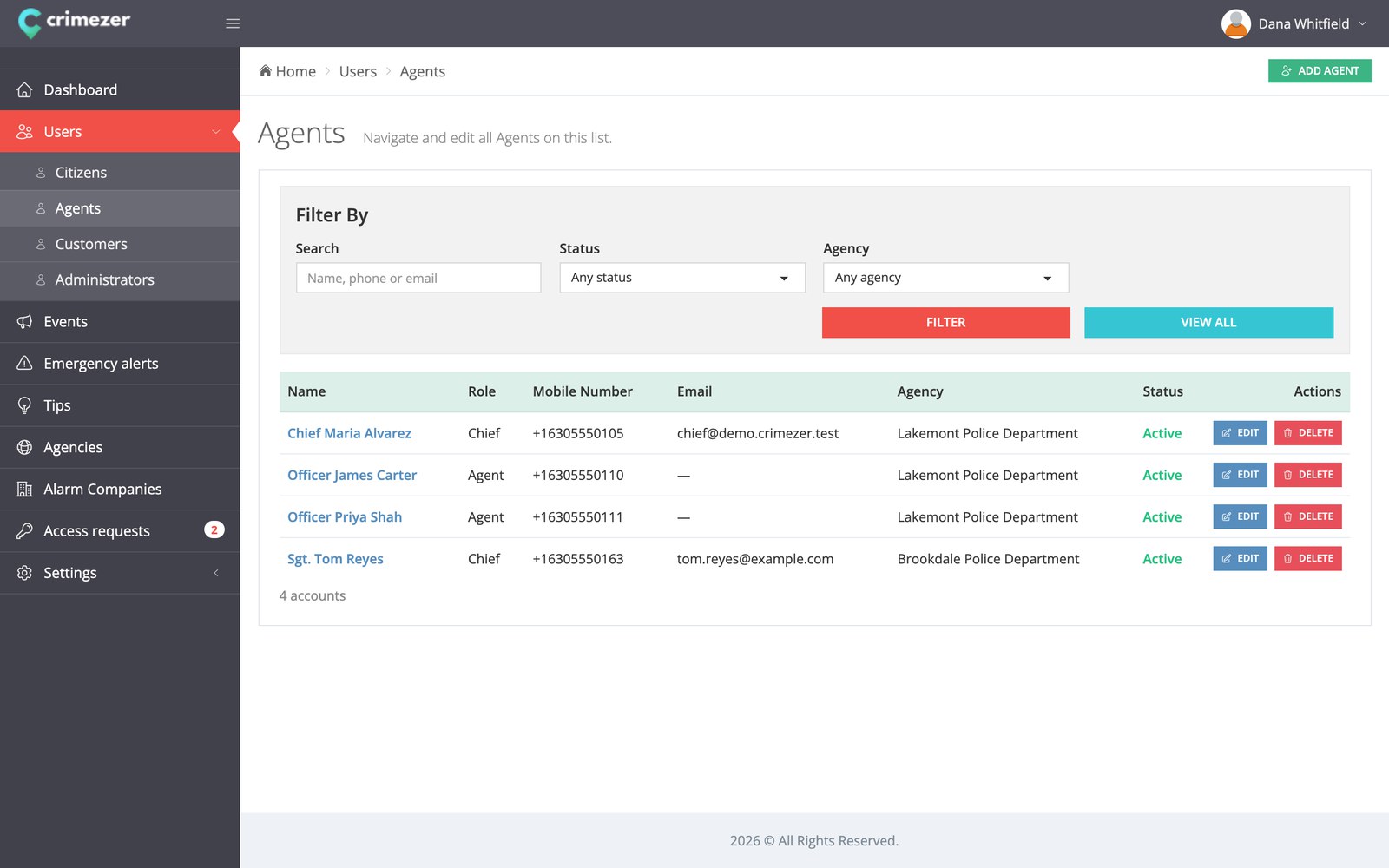
Adding a user
- Open the right list and click Add citizen, Add agent, Add customer or Add administrator.
- Enter the name and mobile number. The mobile number is what the person signs in to the app with.
- For staff, enter an email address and an initial password of at least 12 characters. Give the password to the person directly; it is never emailed. They can change it under My Profile.
- Choose the role, and the agency or alarm company. Chiefs and managers can only add people to their own organization.
- Click Save.
Residents do not need to be added. They create their own account the first time they sign in to the app.
A user's page
Click a name to open the user's page. It shows their contact details, status, how many events they reported, their notification choices, saved places and emergency contacts.
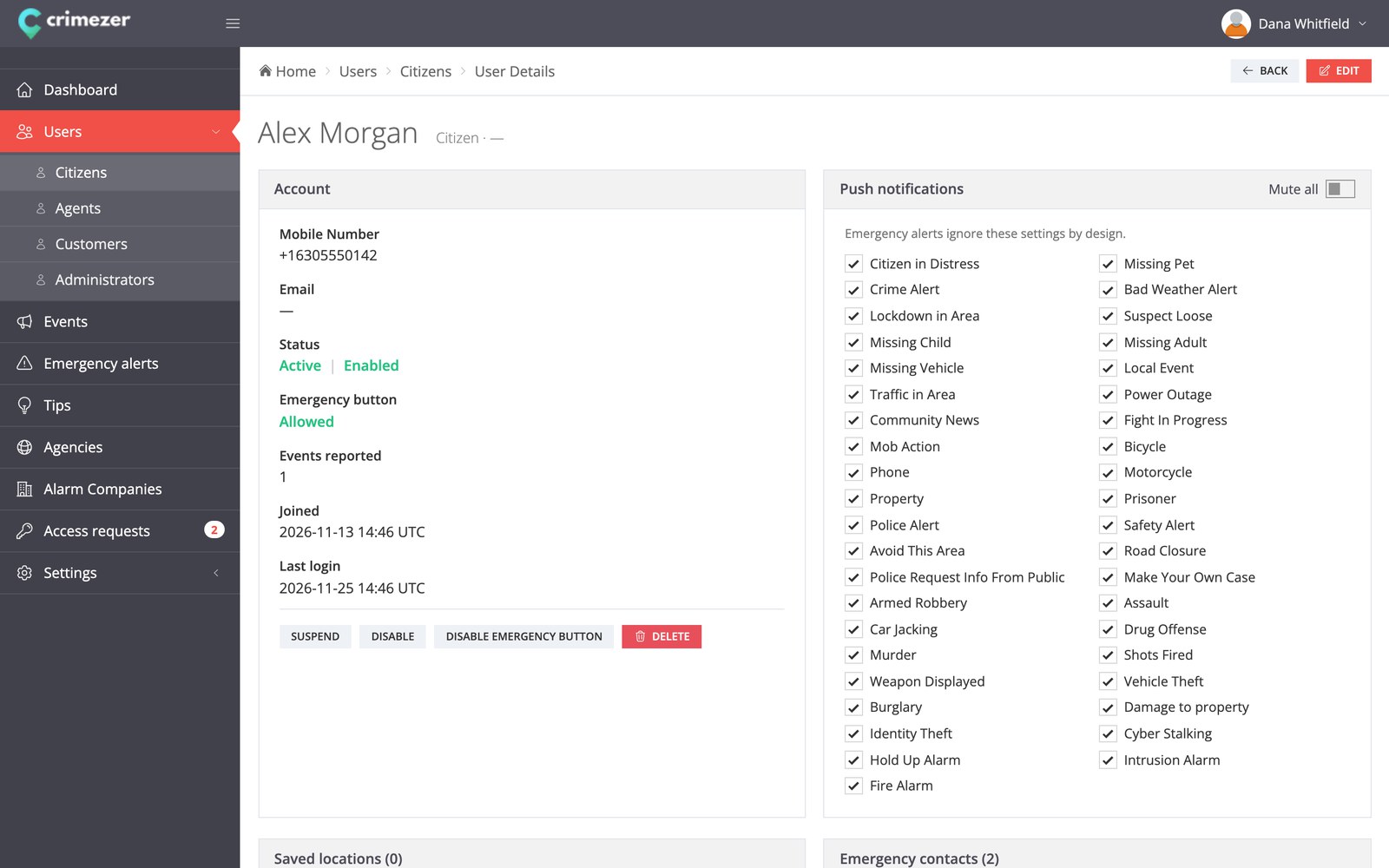
| Button | What it does |
|---|---|
| Suspend / Reactivate | Marks the account inactive, or active again. |
| Disable / Enable | Bans the account, or lifts the ban. |
| Disable emergency button / Restore | Removes or returns the emergency button for this resident. |
| Reset password | Staff accounts only. Creates a new password and shows it once on screen. |
| Delete | Removes the account permanently. |
A user who has reported events cannot be deleted until those events are moved to a colleague. Open Edit and use Reassign Events To Another User.
Agencies and alarm companies
Every officer belongs to an agency, and every alarm customer belongs to an alarm company. Events are filed under the organization of the person who posted them.
Agencies
Agencies lists each agency with its number of members and events. Click Add Agency and enter a name and, if you have one, the web address of its logo. An agency can only be deleted when it has no members. A chief sees their own agency under Agency Info.
Alarm companies
Alarm Companies works the same way, with one extra field: an Alert Email address that gets a copy of every event filed under the company. A manager sees their own company under Alarm Company Info.
Connecting an alarm company
An alarm company's monitoring system can send alarms straight into Crimezer. Each alarm becomes an event near the customer's address. Click Integration on the company's row to set this up.
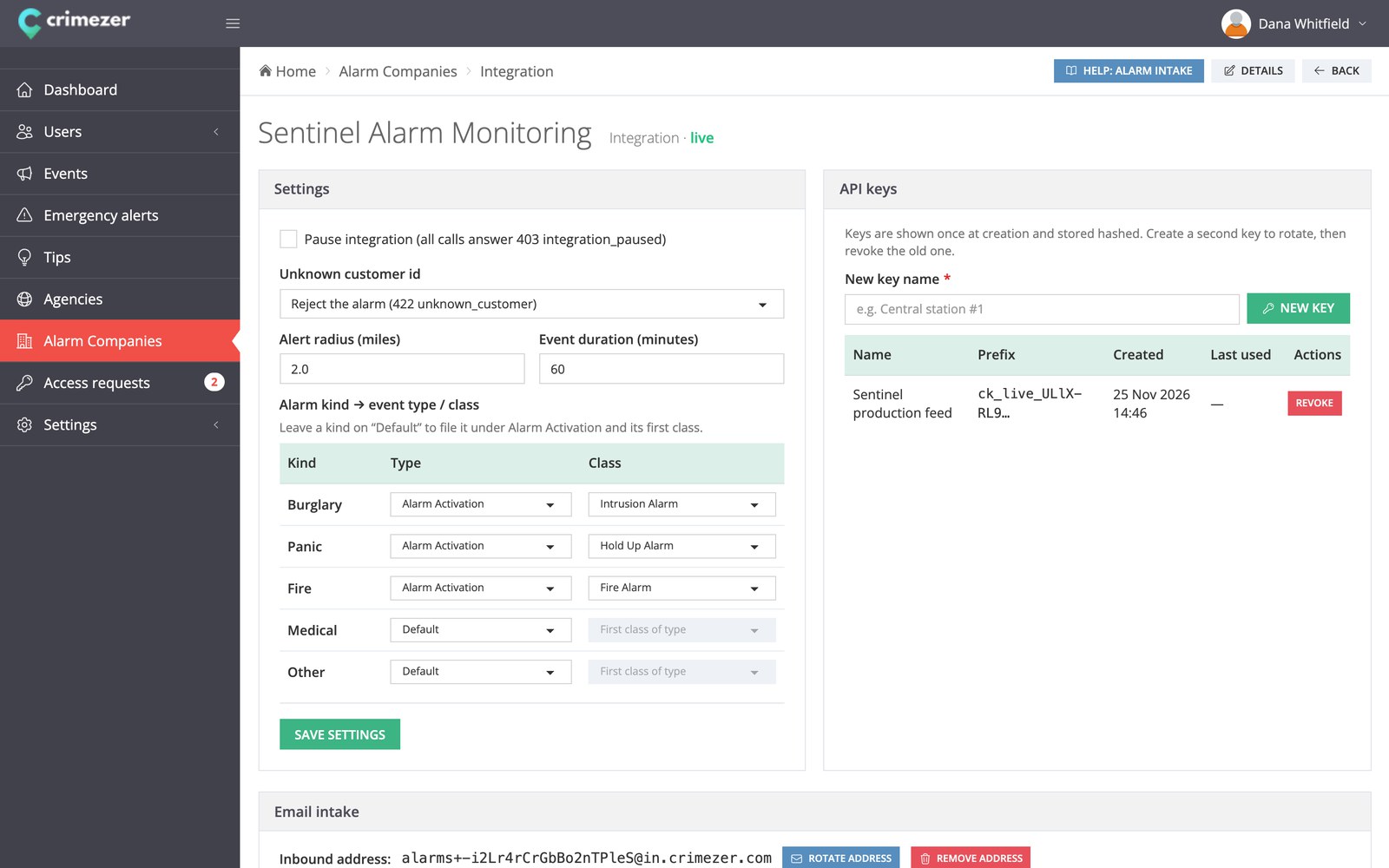
| Box | What you set there |
|---|---|
| Settings | Pause the connection, choose what happens when an alarm names an unknown customer, the alert radius, how long an alarm event lasts, and which event type each kind of alarm (burglary, panic, fire, medical, other) is filed under. |
| API keys | Create the key the company's system signs in with. A key is shown once when created, so copy it then. Revoke a key to stop it working at once. |
| Email intake | An email address the company can send alarms to instead, and the list of senders allowed to use it. |
| Customer notifications | Whether the customer is texted when an alarm arrives, and where Crimezer reports false alarms and cleared alarms back to the company. |
| Delivery log | Every alarm received, and whether it was accepted, a duplicate, or rejected and why. |
Help: alarm intake on that page is the technical guide to hand to the alarm company's IT staff.
Access requests
A police department or other agency can ask for access from the Crimezer website. Administrators see these under Access requests. A red number in the sidebar shows how many are waiting.
- Read the request: department, contact person, email, phone and message.
- Click Grant. Choose whether to create a new agency or use an existing one, and whether the contact becomes an Agent chief (can add the department's own agents) or an Agent.
- Click Grant access.
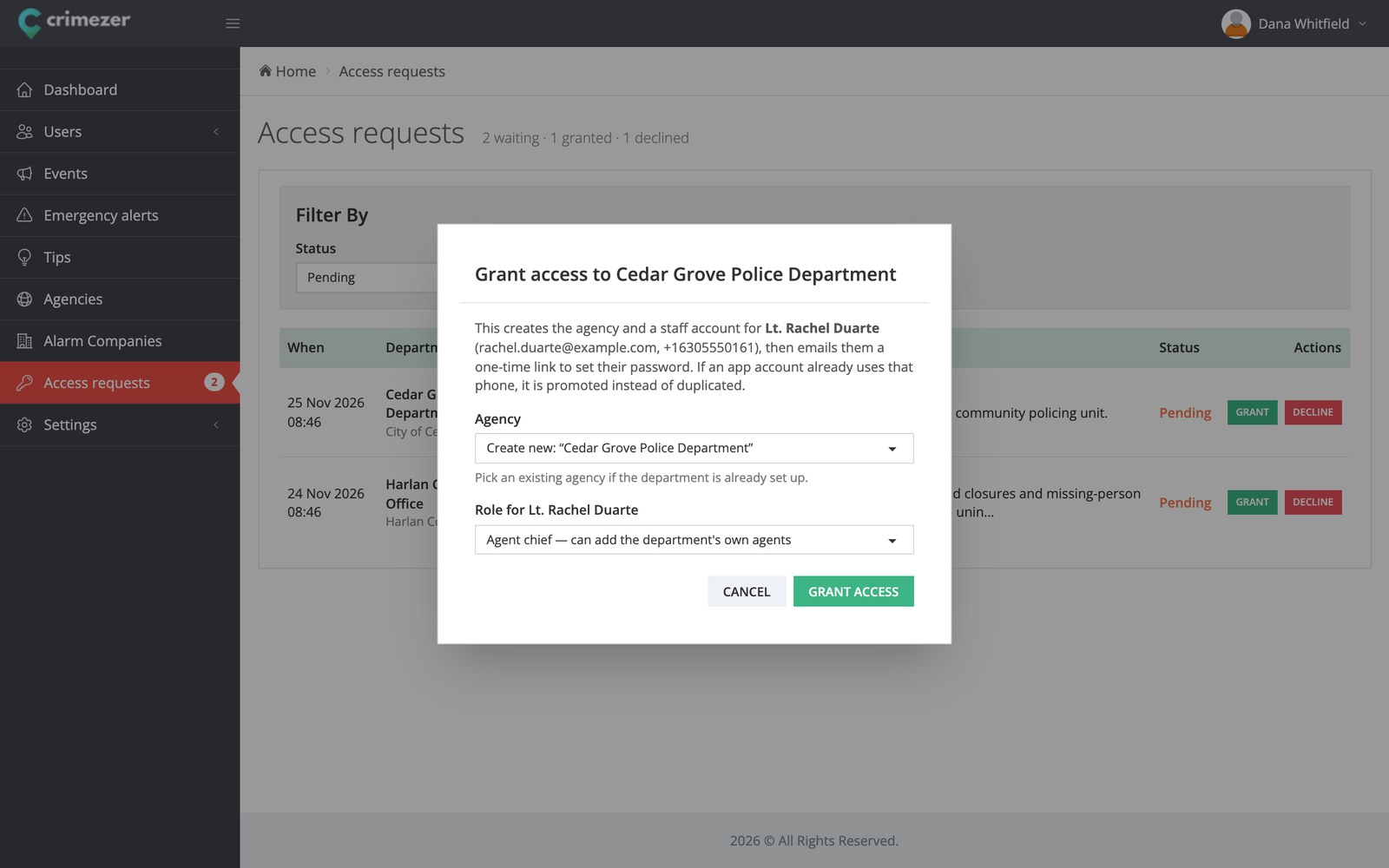
Crimezer creates the agency and the person's account and emails them a link to set a password. The link works once and expires after 24 hours. New setup link sends another. The link is also shown on screen so you can pass it on yourself.
Decline closes a request. The department is not notified.
Event settings
Administrators set up what kinds of alerts exist under Settings > Event Settings. Changes apply to new alerts at once.
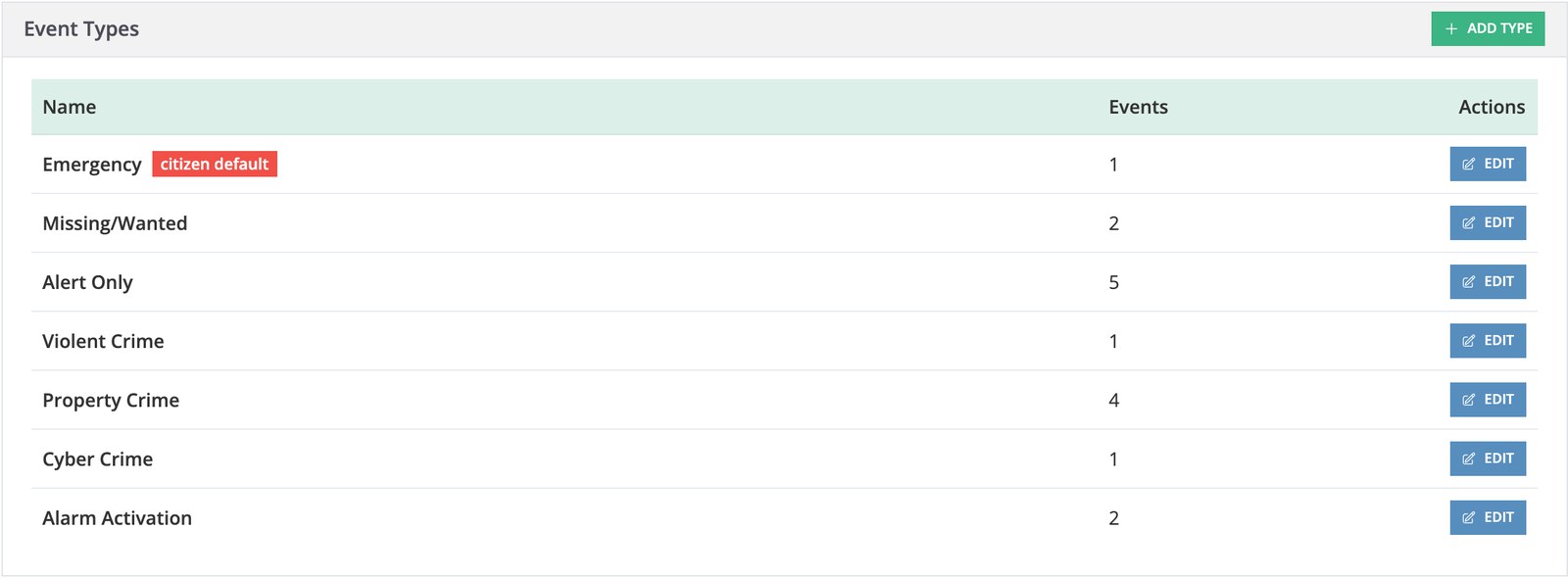
| Box | What it holds |
|---|---|
| Event Types | The broad groups, such as Violent Crime or Property Crime. |
| Event Classes | The specific kinds within a type, such as Burglary. Each class has an icon, the types it can be filed under, and up to two quick answers. |
| Canned Replies | The quick answers residents can tap on an alert. A reply marked Alarming is shown highlighted. |
A type or class that has events cannot be deleted. Some classes are locked because the app depends on them. A quick answer that people have already used is kept for the record.
Residents choose which classes notify them, so name classes the way residents would recognize them.
Your own account
Click your name at the top right and choose My Profile to see your name, email, mobile number and role. To change your password, enter your current password and a new one of 12 to 72 characters, then click Update password.